
Seoul Travel Tools – How to Use
[Download the Seoul Travel Tools Guide PDF]
Seoul Travel OCR Guide -How to Use
Walking Helper Guide – How to Use
Seoul Subway Route Finder-How to Use
Korean Image Search-How to Use
Planning a trip to Seoul can be exciting, but getting around an unfamiliar city can sometimes be challenging. You may need to find the right subway route, walk from a station to a tourist attraction, locate an ATM that accepts international cards, or understand a Korean sign or restaurant address.
Seoul Travel Tips provides practical travel tools designed to help international visitors handle these situations more easily.
Instead of providing only travel information, Seoul Travel Tips combines destination guides with simple tools that you can use while traveling around Seoul.
Our five main Travel Tools are:
Each tool has a different purpose, but they can also be used together during the same trip.
This guide explains what each tool does, how to use it, and when it can be especially useful for first-time visitors to Seoul.
1. Seoul Subway Route Finder
Seoul has an extensive subway network, and the number of lines and transfer stations can initially seem complicated to visitors.
The Seoul Subway Route Finder is designed to make route planning simpler.
Instead of trying to understand a complicated subway map yourself, you select your departure station and destination station, and the tool provides a route based on its route-selection rules.
How to use the Subway Route Finder
Step 1: Select your departure station
Choose the station where your journey begins.
For example, you might select Cheongnyangni Station if you are starting your journey in northeastern Seoul.
Step 2: Select your destination
Choose the station where you want to arrive.
For example, you could select Chungmuro Station, which is served by Lines 3 and 4.
Step 3: Click “Find Route”
After selecting both stations, click the Find Route button.
The tool calculates a suitable subway route.
Step 4: Check the recommended route
The route system prioritizes fewer transfers. When routes have the same number of transfers, the route with fewer station moves is preferred.
Travel time and physical walking distance are not used as the primary route-selection criteria.
This makes the result easy to understand when your main concern is avoiding unnecessary transfers.
When is it useful?
The Subway Route Finder can be especially useful when:
- You are visiting Seoul for the first time.
- You are traveling between major tourist areas.
- You want to avoid unnecessary subway transfers.
- You are unsure which subway stations to use.
- You want to check a route before leaving your hotel.
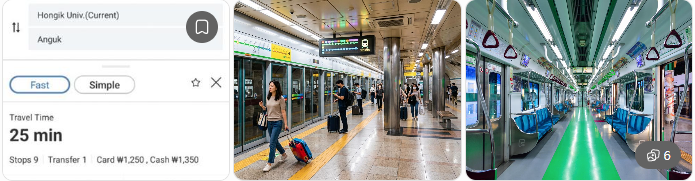
Tip: Use the route finder before starting your journey, then follow the signs and station information at the actual subway station. Subway service conditions can change because of maintenance, temporary closures, or operational circumstances.
2. Walking Helper
Finding a subway station is only part of getting around Seoul.
After leaving the subway, you may still need to walk several hundred meters—or more—to reach a palace, market, shopping street, museum, or other destination.
The Walking Helper is designed for this part of your journey.
It uses your current location and provides walking directions to selected destinations in Seoul.
The system includes 91 fixed destinations, consisting of 50 selected tourist attractions and 41 selected subway stations.
You do not need to type an address manually.
How to use Walking Helper
Step 1: Activate GPS
Tap Activate GPS and allow location access when your browser asks for permission.
Your current location is then used as the starting point.
Step 2: Select a destination
Choose one of the available destinations.
The destination list includes selected tourist attractions and subway stations.
Step 3: Open the route
After selecting your destination, open the walking route in Naver Map.
Step 4: Follow the walking directions
Naver Map provides the actual walking directions from your current location to the selected destination.
This is particularly useful when you have already arrived in the correct neighborhood but are not sure which street or direction to take.
When is Walking Helper useful?
You can use it when:
- You leave a subway station and need to find a tourist attraction.
- You are exploring a neighborhood on foot.
- You are visiting a destination for the first time.
- You do not know the Korean address of your destination.
- You want to move between nearby Seoul attractions.
For example, after arriving at a subway station near Bukchon Hanok Village, you can use Walking Helper to help locate the selected destination before continuing your sightseeing.
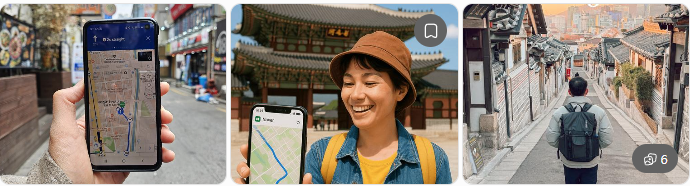
Important: GPS accuracy can vary depending on buildings, underground areas, weather, and your device. Always check the surrounding streets and signs as well as the map.
3. Seoul Global ATM Finder
Access to cash can become an important issue during a trip.
Although card payments are widely available in Seoul, travelers may still need cash for certain purchases, markets, transportation-related situations, or smaller businesses.
The Seoul Global ATM Finder helps international visitors locate ATM locations in major tourist areas and transportation hubs.
You can search by:
- Area
- Bank
- Address
- Subway station
The database currently covers locations in major areas such as Myeongdong, Hongdae, Insadong, Bukchon, Euljiro, Jongno, Seoul Station, Gangnam, Dongdaemun, Itaewon, COEX/Samseong, Yongsan, Jamsil and other tourist areas.
How to use the Global ATM Finder
Step 1: Search for an area
Enter an area, bank, address, or subway station in the search field.
You can also select one of the area buttons.
Step 2: Check the ATM results
Review the available ATM locations in the selected area.
The results can provide information such as the location, bank and address.
Step 3: Check the location details
Before visiting, check the available information and make sure the location is convenient for your route.
Step 4: Open the location on a map
Use the available map option to check directions to the ATM.
Important information for international card users
Before inserting your card, check the ATM screen for a Global ATM or international-card/network logo.
ATM availability, operating hours, supported cards, and foreign-card services can change. ATM information should therefore be treated as practical location guidance rather than a guarantee that every machine will accept every international card.

Tip: If an ATM does not accept your card, do not assume that all ATMs from the same bank will have the same availability. Checking another nearby machine can be useful.
4. Seoul Travel OCR
One of the most common challenges for international visitors in Korea is reading Korean.
You may see a restaurant sign, menu, shop name, street address, subway-related information, or location written entirely in Korean.
The Seoul Travel OCR helps you read Korean text from a photograph or screenshot.
OCR means Optical Character Recognition. The tool recognizes text contained in an uploaded image and helps you understand the Korean information.
How to use Seoul Travel OCR
Step 1: Take a photo or screenshot
Take a clear photograph of the Korean sign, menu, address, or other information you want to understand.
You can also use a screenshot that is already saved on your phone.
Step 2: Upload the image
Open Seoul Travel OCR and select Choose Image / Screenshot.
Upload the image from your device.
Step 3: Read the recognized Korean text
The tool processes the image and recognizes the Korean text.
This can be particularly useful when you encounter a restaurant name or address that you cannot type yourself.
Step 4: Open the location on a map
When appropriate, use the recognized information to open the location in Naver Map or Google Maps.
This can turn a Korean sign or address into something you can use for navigation.
When is Seoul Travel OCR useful?
It can help when:
- You find a restaurant with a Korean-only sign.
- A menu is written mainly in Korean.
- You have a Korean address in a photograph.
- You see a shop name that you cannot type.
- You receive location information as an image.
- You want to search for a Korean place name on a map.
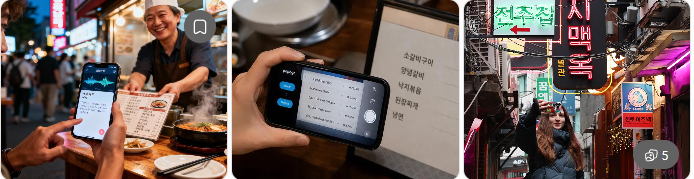
A practical example
Imagine that you are walking through a neighborhood in Seoul and see a restaurant with a Korean sign.
You can take a photograph of the sign, upload it to Seoul Travel OCR, check the recognized Korean text, and then use the location information with a map service.
This can be much easier than trying to type unfamiliar Korean characters manually.
Tip: OCR works best when the photograph is clear and the text is large enough to recognize. Very small, blurry, handwritten, distorted, or partially hidden text may produce inaccurate results.
Using the five Seoul Travel Tools Together
The five tools are designed to solve different parts of a Seoul journey.
You can also combine them during one trip.
For example, imagine that you want to visit Gwangjang Market.
Step 1 — Plan your subway journey
Use the Seoul Subway Route Finder to select your departure station and the subway station near your destination.
Check the recommended route and the number of transfers.
Step 2 — Find your way after leaving the subway
After arriving at the station, use the Walking Helper to select your destination and open the walking route in Naver Map.
Step 3 — Find an ATM if you need cash
If you need cash during your visit, use the Global ATM Finder to search for an ATM in the surrounding area.
Step 4 — Read Korean information
If you see a Korean restaurant, store, or address that you cannot read, use Seoul Travel OCR to recognize the text from a photograph or screenshot.
This creates a simple travel workflow:
Subway → Walking → ATM → Korean text
The tools are designed to help with the practical problems that can occur between the major sightseeing points of your trip.
5. Korean Image Search
Korean Image Search: Read Korean Text and Search on Google
Korean signs, restaurant names, menus, shop names, and addresses can be difficult to type when you are traveling in Seoul. This tool lets you upload a photo or screenshot, recognize the Korean text in your browser, check the result, and search it on Google.
How to Use Korean Image Search
When traveling in Korea, you may find Korean words that are difficult to type or search for. You may see a Korean restaurant name on a sign, a Korean address on a website, information on a menu, a subway station name, or the name of a tourist attraction. If you cannot read or type Korean, searching for that information can be difficult. Korean Image Search makes this process easier by allowing you to use a photo or screenshot instead of typing Korean manually.
Step 1. Prepare an Image Containing Korean Text
First, prepare a photo or screenshot containing the Korean words you want to search for. You can use a photo taken with your smartphone camera, a screenshot from a website, an image from social media, or another saved image. For example, you can capture a Korean restaurant name, store name, street address, tourist attraction, subway station, Korean food name, or Korean notice. If you are browsing a Korean website and find a place you want to visit, simply take a screenshot of the Korean name or address.
Step 2. Upload the Image
Open the Korean Image Search tool and select the image upload area. On a smartphone, you can normally select an image from your photo gallery. Depending on your device, you may also be able to take a new photograph. For the best OCR result, use an image where the Korean text is clear and easy to read. A sharp screenshot or a well-focused photograph generally works better than a dark, blurry, or very small image. If the image contains a lot of unnecessary information, cropping the image so that the Korean text is easier to see can improve recognition.
Step 3. Start Korean OCR
After you upload an image, the tool processes it and recognizes the Korean characters. This process is called OCR (Optical Character Recognition). OCR converts text contained in an image into digital text that you can read, edit, and search. The Korean Image Search tool performs the OCR processing in your browser. Depending on the image size, image quality, and performance of your phone or computer, recognition may take a little time. Please wait until the process is completed.
Step 4. Check and Edit the Recognized Korean Text
After OCR is finished, the recognized Korean text appears in the text box. This step is important because OCR is not perfect. Korean characters may occasionally be recognized incorrectly, especially when the original image is blurry, the text is very small, the font is unusual, or several characters are close together. A restaurant name or address may contain just one incorrect character, so always check the result before searching.
You can click inside the text box and manually correct any characters that appear to be incorrect. This is especially important when searching for restaurant names, store names, addresses, subway stations, hotels, and tourist attractions. Correcting even one or two characters can sometimes produce much more useful Google search results.
Step 5. Search on Google
Once you have checked the Korean text, press the Search on Google button. The tool opens a Google search using the recognized or corrected text. You do not need a Google Search API to use this function. The tool simply opens a normal Google search page with the text you entered. This keeps the feature simple and practical for travelers.
For example, suppose you see the Korean restaurant name 명동교자. You can take a photograph of the restaurant sign or use a screenshot containing the name. After OCR recognizes the Korean text, check the result, correct it if necessary, and then select Search on Google. Google can then show information related to that Korean name, including websites, reviews, articles, images, and other available search results.
Step 6. Use the Google Results to Find More Information
After Google opens, you can use the search results to learn more about the place or information you found. If you are looking for a Korean restaurant, for example, you may find its location, reviews, opening information, menus, photographs, and other available information. If you found a Korean tourist attraction, searching its original Korean name can help you discover additional information that may not appear when searching only with an English translation.
Travel tip: Korean business and place names are often best searched using their original Korean spelling. If OCR makes a small mistake, correct the text before searching. The goal of this tool is not to translate the Korean text automatically, but to make it easy for international travelers to search Korean text that they cannot conveniently type.
A Useful Example for Travelers
Imagine that you are walking around Seoul and see a restaurant that looks interesting. The restaurant sign is written entirely in Korean, but you do not know how to type Korean on your phone. Instead of trying to enter the name manually, take a photograph of the sign. Then follow these simple steps: open Korean Image Search → upload the photograph → wait for Korean OCR → check the recognized name → correct the text if necessary → click Search on Google → review the search results. This allows you to search for a Korean business without knowing how to type Korean.
What Can You Search?
- Korean restaurant names
- Café and shop names
- Korean food names
- Tourist attractions and landmarks
- Korean street addresses
- Subway station names
- Hotel and accommodation names
- Place names from screenshots
- Korean text from travel websites or guides
- Korean signs, notices, and advertisements
How to Get Better OCR Results
For better recognition, use a clear image with large, sharp Korean characters. Avoid strong reflections, motion blur, heavy shadows, or extremely small text. If possible, photograph the text straight on rather than from a steep angle. Cropping the image around the Korean text can also make recognition easier. A clean screenshot is often particularly useful when the Korean text comes from a website or mobile application.
Why Search Using the Original Korean Name?
When searching for a local Korean restaurant, store, attraction, or other place, the original Korean name can sometimes be more useful than an English translation. A Korean business may be officially registered online using its Korean name, and local websites and listings may use that exact spelling. Searching the original Korean text can therefore help you find the specific place you are looking for. This is particularly useful when you discover a place from a Korean website, Korean social media post, restaurant sign, menu, or local advertisement.
Designed for Real Travel Situations
Korean Image Search is designed to solve a simple problem that international visitors may experience in Korea: “I can see the Korean name, but I do not know how to type it.” Instead of manually typing Korean, you can use an image. Take a screenshot, photograph the sign, upload the image, check the OCR result, and search it on Google.
This can be useful while exploring Myeongdong, Hongdae, Insadong, Bukchon, Gangnam, Dongdaemun, Seongsu, Gwangjang Market, and other areas of Seoul where you may frequently encounter Korean-only signs, restaurant names, addresses, and local information.
Quick Guide
Image → Korean OCR → Check Text → Search on Google
That is all you need. Korean Image Search is intended to be a simple travel tool that helps international visitors search for Korean places and information without having to type Korean manually.
Do I need a Google Search API?
No. This tool opens a normal Google search using the recognized text. No Google Search API is required.
Can I edit the recognized Korean text?
Yes. You can edit the OCR result before pressing the Google Search button. Checking the result is recommended, especially for names and addresses.
Can I use it on a phone?
Yes. The interface is designed for mobile browsers as well as desktop browsers, making it useful while traveling in Seoul.
Does the tool automatically translate Korean into English?
No. The main purpose of this tool is to recognize Korean text and make it searchable on Google. You can edit the Korean text before searching.
What should I do if the OCR result is incorrect?
Try a clearer image, crop the image around the Korean text, or manually correct the recognized text in the text box before searching.
Designed for First-Time Visitors to Seoul
Seoul can feel complicated at first because the city combines a large subway network, busy streets, traditional neighborhoods, modern shopping districts, and information written primarily in Korean.
You do not need to understand everything before you arrive.
A useful approach is to divide your journey into smaller steps:
Where should I go?
Use the Subway Route Finder.
How do I get there from the station?
Use Walking Helper.
Where can I find an ATM?
Use Global ATM Finder.
What does this Korean sign or address say?
Use Seoul Travel OCR.
These tools are designed to complement the detailed Seoul destination guides available on Seoul Travel Tips.
Travel Tips When Using These Tools
The tools are designed to make your trip easier, but they should be used together with normal travel awareness.
Keep your phone charged, especially when you plan to rely on GPS or online maps.
When using GPS, make sure your browser has permission to access your location.
For walking directions, pay attention to actual street signs, pedestrian crossings, entrances, and local conditions rather than relying only on the map screen.
For ATM searches, remember that machine availability and international-card support can change.
For OCR, use clear photographs whenever possible and check the recognized text before using it for an important address.
For subway journeys, always check the signs and station announcements at the time of travel because service conditions can change.
Download the Seoul Travel Tools Guide
Want to keep the instructions with you while traveling?
Seoul Travel Tips provides a downloadable guide covering the five main Travel Tools:
Subway Route Finder · Walking Helper · Global ATM Finder · Seoul Travel OCR
Download the guide before your trip and keep it on your phone for quick reference.
[Download the Seoul Travel Tools Guide PDF]
File: seoul-travel-tools-guide.pdf
Explore Seoul with Seoul Travel Tips
Seoul Travel Tips is designed to help international visitors explore Seoul with practical information, destination guides, and useful travel tools.
Whether you are planning your first subway journey, walking through a traditional neighborhood, looking for an ATM, or trying to understand a Korean sign, the goal is simple:
Make it easier to explore Seoul with confidence.
Explore the destination guides, try the Travel Tools, and use the information that fits your own travel plans.
Seoul Travel Tips — Explore Seoul with practical information and useful travel tools.